All photo workflows
Professional Photos

Formal Headshot for Employee Badges and Staff Profiles

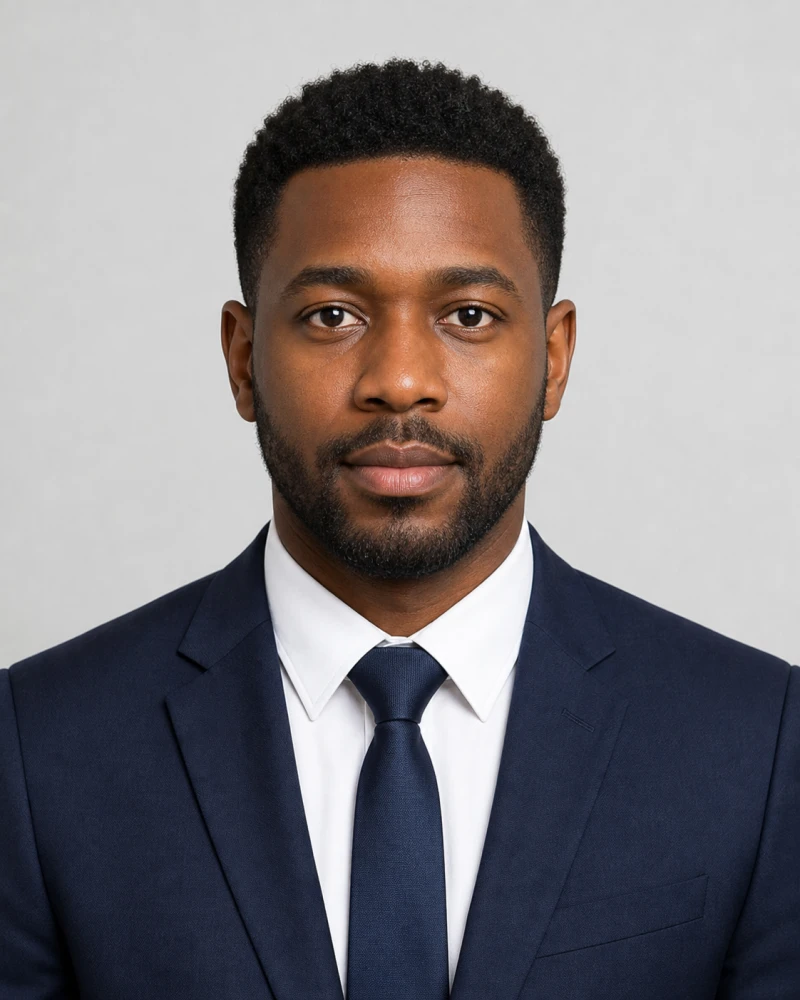
Create a centered, level-shouldered 4:5 portrait with a neutral expression and minimal retouching for employee badges or staff directories. Check your organization’s crop and background requirements; this is not a passport validation service.

Portrait 4:5Head & shouldersNeutral
  • Identity preserved
  • Private by design
  • 30-day preview retention
Generate professional photo
Formal Headshot for Employee Badges and Staff ProfilesPortrait 4:5
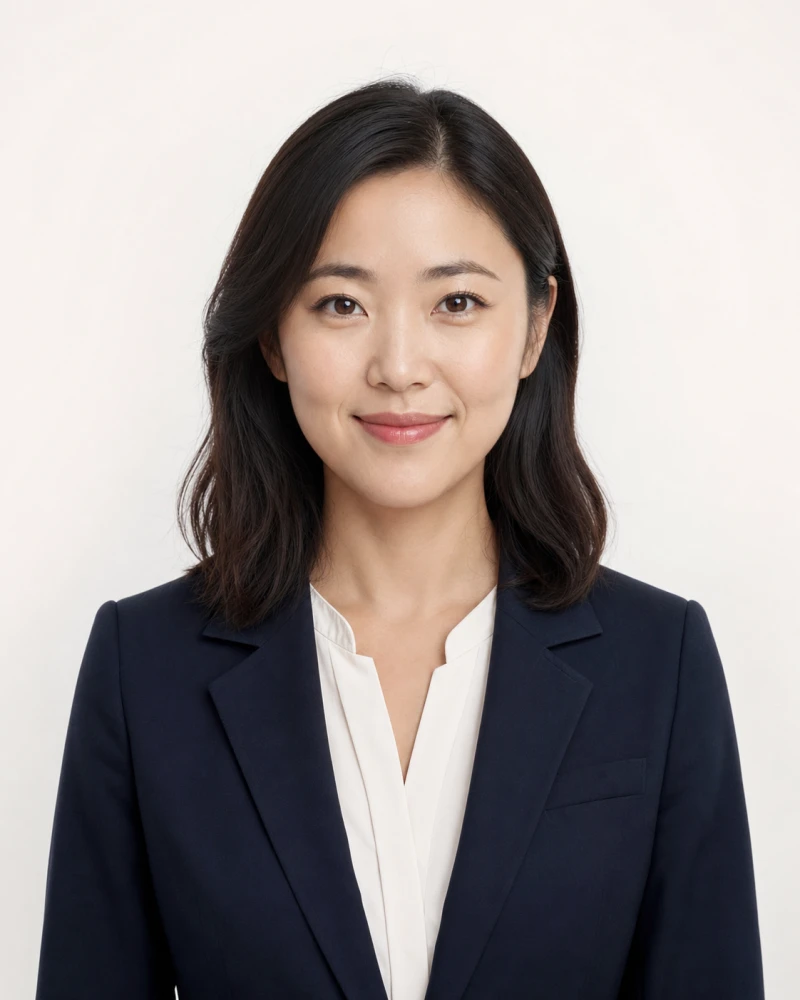
Formal Headshot for Employee Badges and Staff ProfilesIllustrative style example. Your result will depend on your source photo and settings.

Prepare a source photo that looks like you

  • Use a recent, sharp photo of one person, facing the camera, with the entire face and shoulders visible.
  • Use even light from in front of you. Avoid strong side shadows, backlighting, beauty filters and sunglasses.
  • Leave room around your hair and chin. Do not upload a screenshot of a tiny profile picture.
  • Start with a simple background and attire appropriate to your audience. Change one setting at a time to compare results.

Check the result before you unlock

Compare the preview with your source at full size: face shape, eyes, teeth, hairline, skin texture and clothing edges. Then check it at the small size where it will be used. If it no longer looks like you or contains visible artifacts, do not unlock it. AI results vary; a preset is a starting point, not a guarantee.

Preview, credits and downloads

Sign in to generate a watermarked preview. One credit unlocks one clean original; buying credits alone does not unlock an image. Review the current allowance in the studio and current pack prices on the credits page. Unlock only after you are satisfied with the preview.

See current credit packs

Before you create your headshot

Which photo should I choose for LinkedIn?

Start with the square LinkedIn preset. Keep your face recognizable in a small circular crop and leave enough space around your head. A relaxed expression and a quiet background help the face remain the focus.

Should I put a photo on my résumé?

Follow the employer’s application instructions and the expectations of your target market. A résumé photo is not always requested. If you need one, use the professional headshot preset; otherwise keep the photo for your profile or portfolio.

Can an employee-badge portrait be used for a passport?

No preset guarantees official acceptance. The formal ID-style portrait is intended for staff profiles and business records. Passport and visa applications have separate rules; check the issuing authority before using any AI-generated or edited image.

Do the example images guarantee my result?

No. They illustrate the intended style, not a customer testimonial or a guaranteed transformation. Review your own preview for identity and image quality before spending a credit.

Read the photo preparation guide
Professional photo workflow

Four steps to a professional result.

Upload a clear portrait, choose the intended use, let AI create the image, then review the watermarked preview before unlocking.

  1. 01

    Upload your portrait

    Use one clear, well-lit and front-facing photo.

  2. 02

    Choose the purpose

    Select a professional, passport or visa workflow.

  3. 03

    Generate with AI

    Apply framing, lighting, background and attire settings.

  4. 04

    Review and unlock

    Keep the preview and unlock the clean original you want.